
Before You Begin:
To use the Checkout feature, you will need to create and use an Access Token.
Follow these steps to generate your Access Token via Paydock's Merchant Dashboard:
- Log in to the Paydock Merchant Dashboard.
- Click on the ‘Access Tokens’ link in the navigation menu.
- Click ‘Create New’ and select the following permissions:
- checkouts:create-intent
- checkouts:search
- checkouts:get
- checkouts:get-versions
- checkouts-templates:get
- checkouts-templates:search
- checkouts-templates:create-configuration
- checkouts-templates:create-customisation
- checkouts-templates:update-configuration
- checkouts-templates:update-customisation
- checkouts-templates:delete-configuration
- checkouts-templates:delete-customisation
- checkouts-templates:get-schemas
- Click ‘Save’.
- Copy your Access Token and store it securely, as it cannot be accessed again once generated.
Make sure you have your Gateway IDs for the relevant payment methods, as you will need these during setup.
- Log in to the Paydock Merchant Dashboard.
- Navigate to the ‘Checkout’ section.
- Click ‘Create New’.
From here, you'll be presented with the following template options:
- Customisation: A template designed for adjusting the look and feel of your checkout process.
- Configuration: A template designed for selecting workflows and payment services for your checkout.
- Configuration & Customisation: A combined template that allows you to create both the configuration and customisation simultaneously.
For first-time setup, we recommend using the Configuration & Customisation option.
Creating a Configuration Template
The following steps will guide you through creating a configuration template, helping you to structure and optimise your checkout workflow for stability, clarity, and maximum control:
- Label: Give your template a clear, descriptive label. This helps you easily identify it later.
- Versioning: The latest template version will be pre-selected automatically to ensure you have access to the most recent features and functionality.
- Payment Method Options: Use the provided toggles to enable different payment methods and flows. The system will automatically show you a list of compatible gateways for each option.
- Card Payments: For card payment methods, Checkout provides multiple flow options to help you tailor payment processing to your business requirements.
- Direct Capture: This is the default and mandatory flow for card payments.
- Fraud Prevention: In the Fraud tab, you can enable integration with services like Forter or Accertify.
- 3D Secure (3DS): In the 3DS tab, you can enable authentication options:
- Gateway 3DS: Available for the MPGS gateway.
- Standalone 3DS: Compatible with all gateway types.
- Combined Security Flows: If you enable both a fraud and a 3DS option, the system will seamlessly combine them. The order of operations is:
- Fraud check
- 3DS authentication
- Financial charge
- Other Payment Methods: For all other payment methods, only the "direct capture" flow is currently supported.

Configuring Conditions for the Card payment method
The Checkout feature is enhanced to support conditional routing flows for the Card payment method, moving beyond a single, rigid payment path to an adaptable and personalised journey.
This allows merchants to define rules that respond to real-time transaction data. In this initial phase, you can create rules that dynamically influence the:
- Payment gateway
- Fraud settings
- 3DS configurations
In the initial phase, these rules are based on the payment card schema (e.g., Visa, Mastercard, Amex) and whether the card is new or saved. Further parameters will be supported in future.
To use the Checkout Conditions feature, Merchants are required to utilise Version 3 or later for /intent and template creation.
How Conditions work
Understanding the logic of Checkout Conditions is essential for correct configuration.
- First-match principle: The conditions engine is designed to act on the first condition it encounters that is met. It will systematically evaluate the rules in the order you define them.
- Order is critical: Because the conditions stop at the first match, the ordering of your conditions is critical in determining which flow is executed.
- Progressive evaluation: Conditions are triggered as data becomes available. For instance, the condition may execute once a user inputs their card details and the card schema is known. This capability allows the checkout process to dynamically select the necessary rule, along with the required services (such as 3DS or a payment gateway), during the transaction processing.
How to enable Conditions
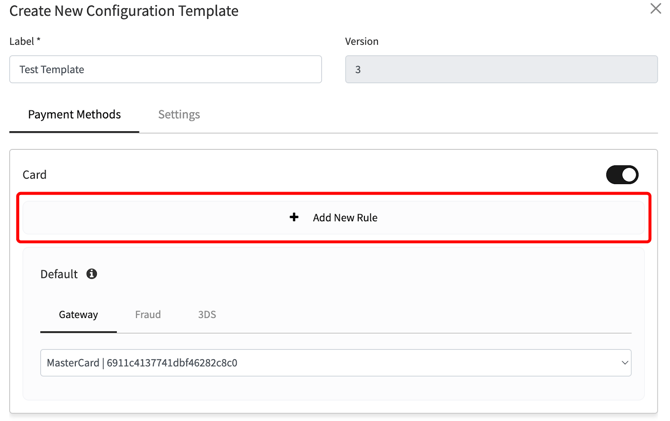
- After enabling the Card payment method in the configuration template, set the "Default" flow configuration. This required set of gateway, fraud, and 3DS settings will be used as a fallback if no other rules are met.
- Click "Add New Rule" for every card scheme you want to include in the conditions. These rules, such as "Rule 1" and "Rule 2", are evaluated sequentially.
- Set the specific criteria for each rule.
- For example, a rule could be: If the card scheme is MasterCard, use the MPGS gateway and enable the 3DS service.
- Another rule could be: If the card scheme is Visa, use the Cybersource gateway and enable the fraud service.
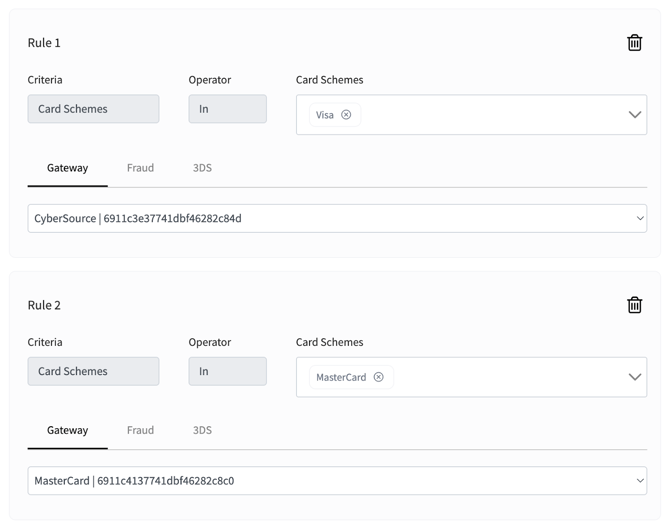
If the criteria are met, the conditions engine will apply the specific gateway, fraud, and 3DS services you have configured for that specific rule.
Settings configuration
The Settings tab includes various configuration options for the template, allowing you to save cards, enable the Forter Agent, hide the message widget and whitelist a list of domains. Below are descriptions for each case.
Saved Card
Saved Card allows customers to store their payment card details for quicker future transactions securely.
The entire process is anchored by a customer_reference that the Merchant provides.
- customer_reference: Merchant unique user identifier (e.g., user_id) for the end-user. This string (1-64 characters) must be passed in the Checkout Intent to link the user to their saved (vaulted) cards.
There are two main workflows:
- New Customer Flow (Saving a Card):
- Merchant passes the customer_reference and runs the Checkout Intent request to receive an intent token.
- Merchant initialises Master Widget with the received intent token.
- The user selects Card as a payment method option in the Master Widget.
- The user enters card details and marks the "Save card" checkbox in the widget.
- Upon a successful charge, the system automatically converts the session vault into a permanent vault token and associates it with the provided customer_reference.
- Existing Customer Flow (Using a Saved Card):
- Merchant passes the same customer_reference in the Checkout Intent.
- Paydock backend searches for all permanent vaults matching that customer_reference.
- The widget displays a list of saved cards (e.g., "Mastercard ****4242").
- The user selects a card.
- The widget then prompts the user to enter their CVV (and update expiry/billing information if required).
- This CVV is securely tokenised (if provided).
- System processes the charge using the selected permanent vault and the newly tokenised CVV.
Merchants must use Version 3 or higher when creating intents and templates to enable the Saved Card flow via Checkout. Additionally, please note that a maximum of 5 saved cards is permitted per user.
To continue with adding the Saved card flow, please follow these steps:
- Navigate to the ‘Settings’ tab and toggle ‘Enable Saved Card’ to the ON position.
- (Recommended) Toggle ‘CVV Validation’ to the ON position. This ensures returning users are prompted for their CVV.
After saving the configuration template and running the initialised widget variable, the Paydock backend and the Master widget manage the logic through a sequence of flow actions, minimising the need for extensive frontend code. Consequently, users will be able to save a new card by using the 'Save Card' checkbox and utilise the saved card for subsequent visits.
Message Widget
If you prefer to manage flow status updates or redirect them yourself, you can simplify the user experience by disabling the Message Widget.
When the 'Hide Message Widget' toggle is set to ON in the 'Settings' tab, the Message Widget will not be displayed to the user during the Checkout process.
Domain Whitelisting
To enhance security, you can restrict where your checkout widget can be embedded.
-
Enable Whitelisting: Go to the 'Security' tab and add the specific domains where your checkout will be accessed to the "Whitelist Domains" field.
-
Domain Format: You must enter the full domain name (e.g.,
test.test.comnottest.com). You can use various formats, such astest.comorhttps://test.com.
If you don't configure domain whitelisting, the checkout widget will be accessible from any domain by default.

Once you've selected your workflows and entered the necessary Service IDs, click ‘Save and Next.’
Creating a Customisation Template
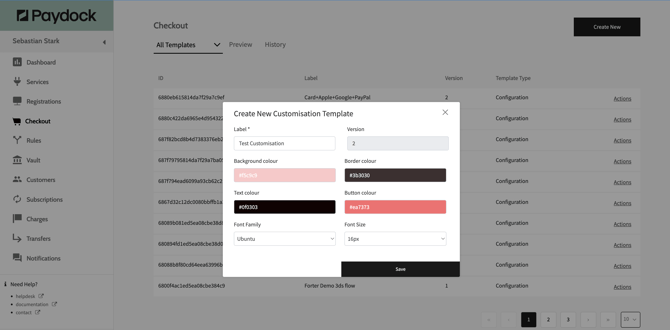
When creating a customisation template, assign a clear label for easy identification. You can then tailor the following elements to align with your brand and user experience goals:
- Background colour
- Border colour
- Text colour
- Button colour
- Font family
- Font size
After finishing your adjustments, select ‘Save’ to apply your changes.
Customisation template is optional.
If you do not provide a customisation template in the intent API request, then the default settings will be applied.
Your created templates will now appear in the Templates list with an associated ID, which you can use in your integration.